Tips for Setting Healthy Boundaries With Notifications
Notifications are designed to get your attention, but not every alert deserves an immediate response. Messages, app updates, reminders, news alerts, and marketing prompts can quickly turn a calm day into a series of interruptions.
Setting boundaries with notifications does not mean ignoring everything or becoming difficult to reach. It means deciding when, where, and how technology can interrupt you. With a few simple changes, you can make notifications more useful and create more space for focused work, rest, and everyday activities.
Why notification boundaries matter
Frequent alerts can make it harder to concentrate on one task. Even when you do not open a notification, seeing it may pull your attention away from what you were doing. Over time, these small interruptions can make simple tasks feel more scattered.
Notification boundaries can help you:
– Stay focused during work or study
– Reduce unnecessary screen checking
– Make time for conversations and activities
– Protect quiet periods in the morning and evening
– Respond to important messages more intentionally
– Keep your devices from controlling your schedule
The goal is not to remove every notification. The goal is to make sure the notifications you receive match your priorities.
Start with a notification review
Before changing your settings, take a few minutes to review which apps are sending alerts. You may find that many notifications come from apps you rarely use or do not need to monitor.
Look through your phone, tablet, computer, and smartwatch. Make a list of the apps that send notifications and place them into three groups:
- **Essential:** Alerts you need to see promptly, such as direct messages from important contacts or time-sensitive reminders.
- **Useful:** Alerts that may be helpful but do not require an immediate response.
- **Unnecessary:** Promotions, repeated updates, game alerts, and other messages that add little value.
Turn off notifications in the third group. For the second group, consider limiting them to a daily summary or checking them only when you open the app.
Keep only the alerts that support your priorities
Many apps ask for permission to send notifications as soon as you install them. It is easy to approve these requests without considering whether the alerts are useful.
A good rule is to ask: “Would I want this to interrupt me while I am focused?” If the answer is no, disable the alert or change it to a quieter option.
You can often customize notifications by:
– Turning off alerts completely
– Removing sound or vibration
– Hiding previews on the lock screen
– Allowing alerts only from selected people
– Moving notifications into a summary
– Disabling badges that show unread counts
– Choosing which types of updates an app can send
This approach gives you more control than simply keeping all notifications on or turning them all off.
Create notification-free blocks
Choose specific periods when notifications will not interrupt you. These blocks can be short at first. Try 20 to 30 minutes while working on one task, then gradually extend the time if it feels helpful.
Common notification-free periods include:
– The first part of the morning
– During focused work or study
– While eating
– During meetings or appointments
– When spending time with family or friends
– The hour before bedtime
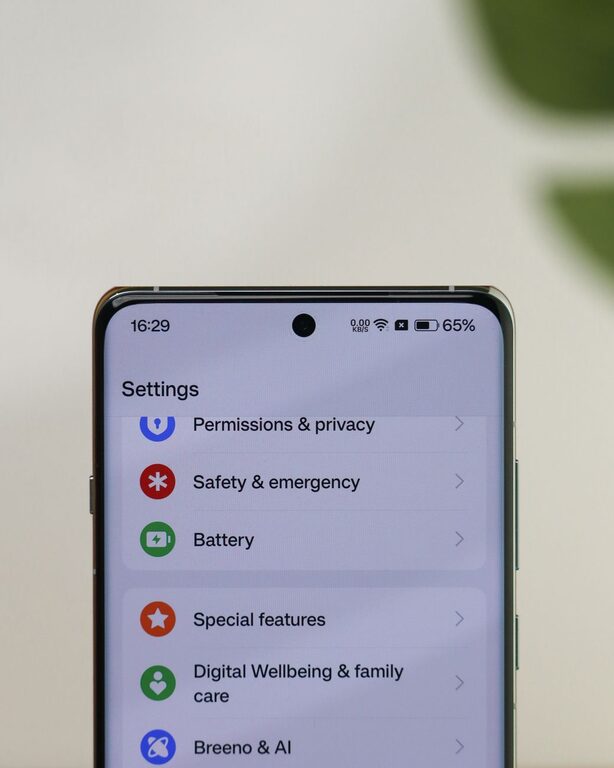
Use your device’s Do Not Disturb, Focus, or similar settings to make these periods easier to maintain. Many devices allow you to create schedules and permit alerts from selected contacts or apps.
The most effective schedule is one you can follow consistently. If a two-hour block feels unrealistic, begin with 15 minutes and build from there.
Set up different modes for different activities
One notification setting may not work for every part of your day. Creating separate modes can make it easier to match alerts to the situation.
For example, you might create:
Work mode
Allow calendar reminders, calls from key contacts, and messages related to current tasks. Silence social media, shopping, entertainment, and promotional alerts.
Personal mode
Allow messages and calls from friends and family while reducing work-related alerts. This can help separate personal time from professional tasks.
Sleep mode
Silence most notifications and allow only selected emergency contacts or alarms. Schedule this mode to start and end at regular times.
Travel or event mode
Limit alerts that are not relevant to your current plans. You can restore your usual settings later instead of managing every app manually.
These modes can also help you communicate your availability. Some devices allow contacts to see that notifications are silenced, which may reduce the expectation of an immediate reply.
Use checking times instead of constant checking
If you check alerts whenever they appear, your day may become organized around incoming messages. Instead, choose a few times to review nonurgent notifications.
For example, you might check them:
– After completing a focused task
– Around midday
– At the end of the workday
– Once in the evening
The exact schedule is less important than having a clear plan. Let people know when necessary that you may not respond right away, especially for work or group projects.
Checking at planned times can also make it easier to process messages in batches. You can read, respond, archive, or delete them without repeatedly switching between tasks.
Separate urgent communication from general updates
Not every message needs the same level of access. Consider creating a simple communication system for urgent matters.
You might ask close contacts to call instead of sending a message when something requires immediate attention. For work or group activities, agree on the best channel for time-sensitive information. Keep routine updates in email or another platform you review at set times.
This system helps reduce the pressure to monitor every app continuously. It also gives people a clear way to reach you when a situation truly requires a prompt response.
Manage notification previews and badges
Notification previews can expose message content on a lock screen or computer display. If you share a workspace or use your device around others, you may prefer to hide previews and show only the app name.
Badges can also encourage frequent checking. A red number on an app icon may create a sense that something needs your attention, even when the update is not important.
Try turning off badges for apps that do not require regular review. For messaging apps, keep previews only if they help you decide whether a message needs a quick response.
Review your boundaries regularly
Your notification needs may change as your schedule changes. A setting that works during a busy project may not be useful on a quiet weekend. Review your notification choices every few weeks or whenever you install several new apps.
Ask yourself:
– Which alerts have been genuinely useful?
– Which notifications interrupt me most often?
– Am I still receiving alerts from apps I rarely use?
– Do my settings support my work and personal time?
– Are important contacts still able to reach me?
Make small adjustments rather than trying to create a perfect system all at once. A few thoughtful changes can have a noticeable effect.
Make boundaries easier to maintain
Notification boundaries work best when they are simple. Avoid creating a complicated system that requires constant management.
Start with these basic steps:
- Turn off alerts from low-value apps.
- Schedule one daily quiet period.
- Remove unnecessary sounds and badges.
- Create a mode for focused work.
- Choose regular times to check nonurgent updates.
- Explain your response expectations to the people who need to know.
Remember that a delayed reply is not the same as poor communication. By choosing when notifications can reach you, you are making room for more deliberate attention. The result is a device that supports your routines instead of setting the pace for your day.